
Automatic Backups and Restore with Backuply
Your hosting account is backed up automatically every day with Backuply. From your cPanel, you can restore a file, a database, a mailbox or your entire account yourself, to the date of your choice.
- Automatic daily backup of your account
- Self-service restore from cPanel
- Targeted restore: files, databases, email, domains and more
- Step-by-step illustrated guides

What you can restore
Full backup
Restore your entire hosting account exactly as it was on the selected date.
Home Directory
Recover all or some of your files: a folder, an accidentally deleted file, a modified theme.
Databases
Restore a single MySQL database, such as the one behind your WordPress site or online store.
Email accounts
Recover a mailbox and its messages without affecting the rest of your account.
Domains, cron jobs and FTP accounts
Restore your configuration too: domains, scheduled tasks and FTP accounts.
Download
Download a backup to your computer to keep a copy on your side.
Restore a backup in 3 steps
Open Backuply
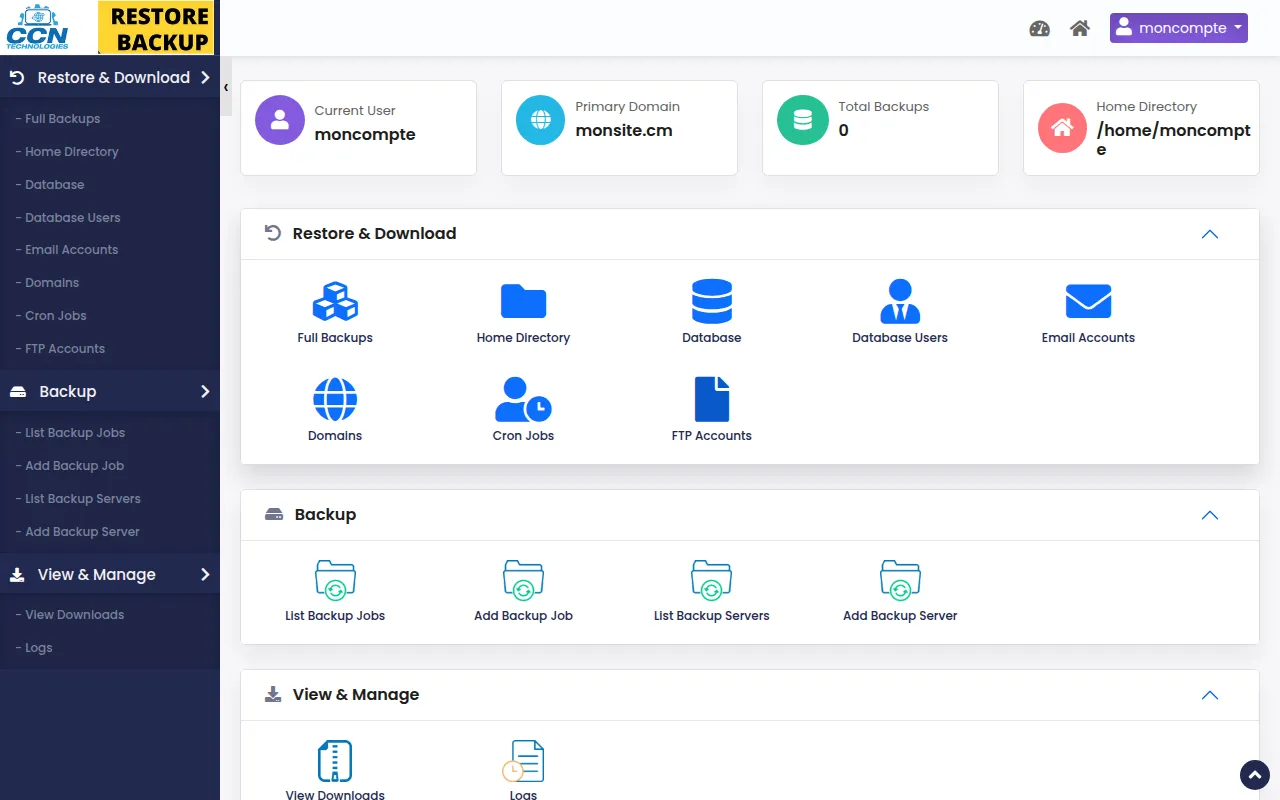
Log in to your cPanel, then click "Backuply" in the Software section. The home page shows your account, your primary domain and the number of available backups.
Choose what to restore
Under "Restore & Download", choose the item type: Full Backups, Home Directory, Database, Email Accounts, Domains, Cron Jobs or FTP Accounts.
Choose the date and start
Select the backup date, tick the items you want, then start the restore or download. Track progress under "View & Manage → Logs".
Manual backup with cPanel
cPanel's Backup tool lets you download a full backup of your account at any time, or just your home directory, a database or your email filters. Handy before a major update.
Read the detailed guide (FR) →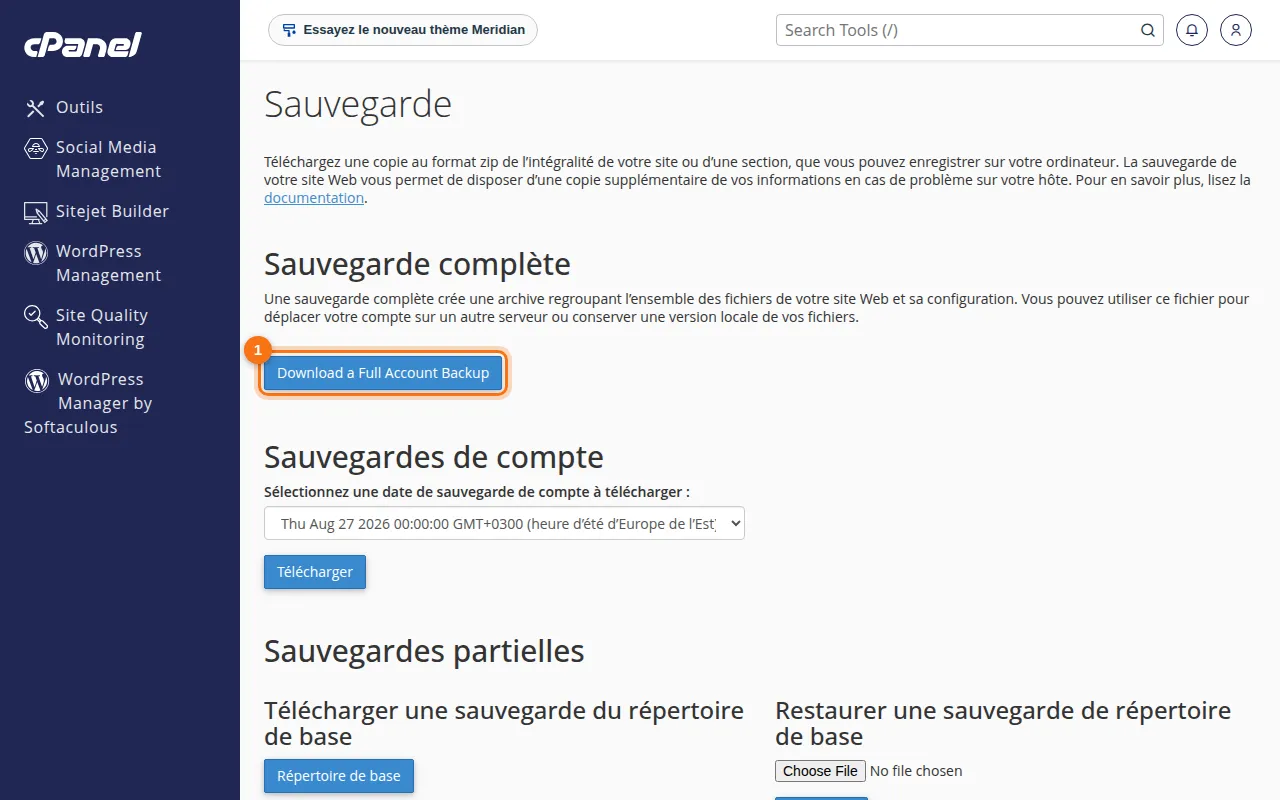
Backup Wizard
The wizard guides you step by step through creating or restoring a full or partial backup.
Read the detailed guide (FR) →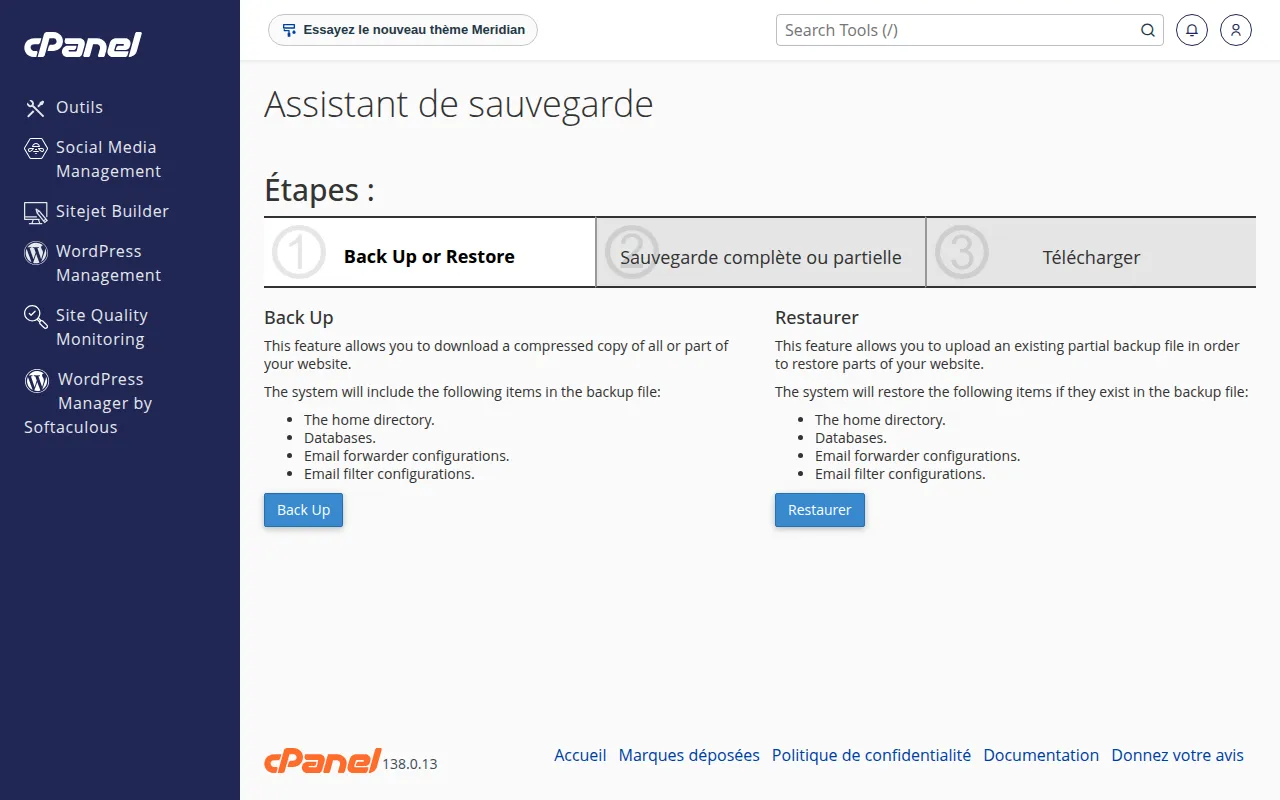
WordPress backups with WP Toolkit
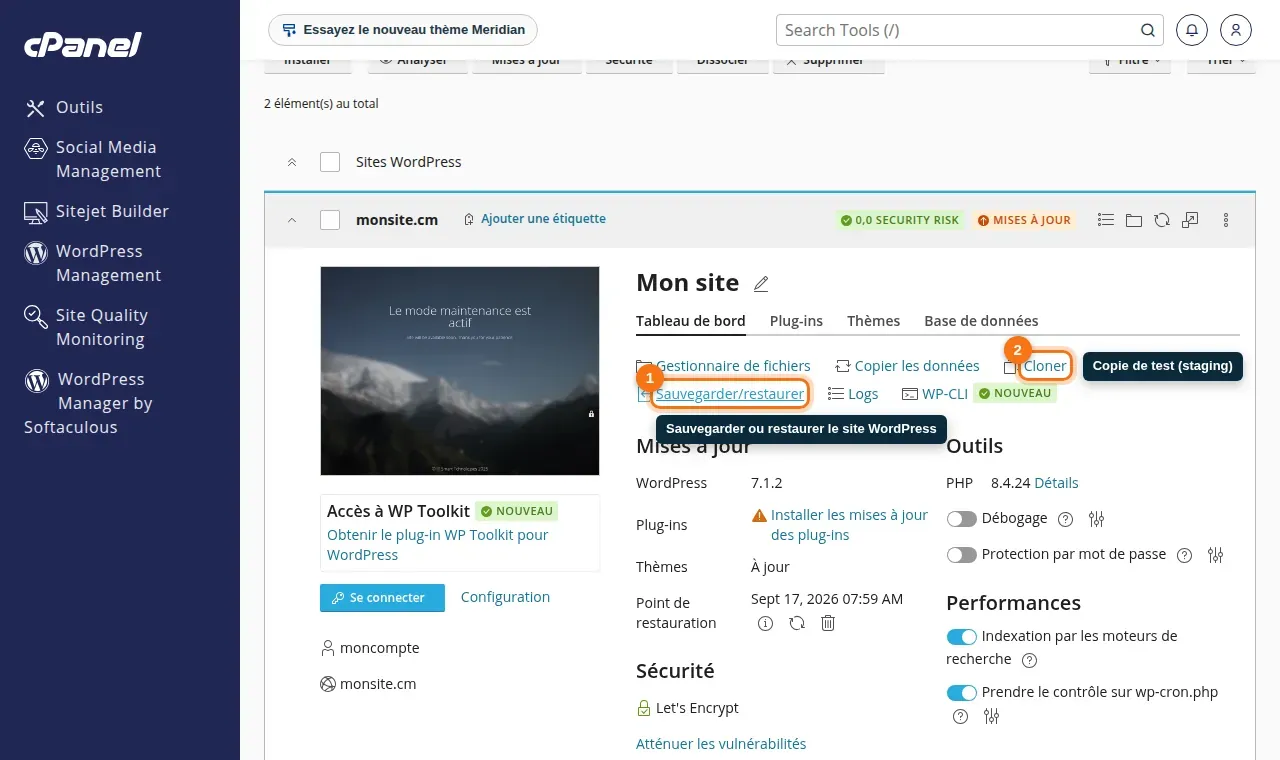
For a WordPress site, WP Toolkit creates a restore point before each update and lets you roll back in one click.
The 3-2-1 rule
Our automatic backups protect your account on our servers. For maximum safety, also keep your own copy: 3 copies of your data, on 2 different media, with 1 stored off the server (for example on your computer or in cloud storage).
Our guide to the 3-2-1 rule (FR) →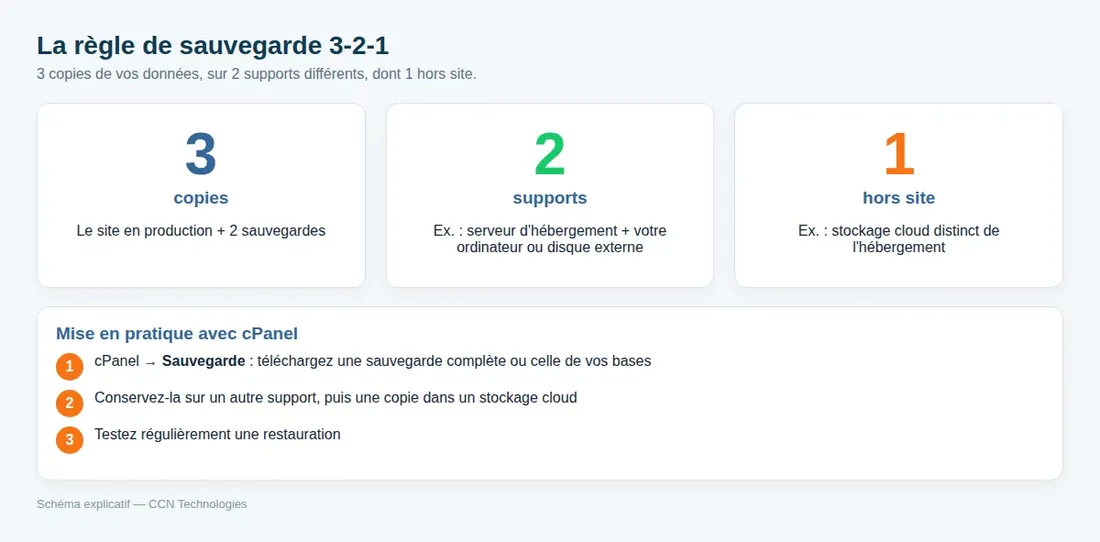
Step-by-step guides
Backuply: restore a backup yourself
Read in the help center (FR) →Full manual backup via cPanel
Read in the help center (FR) →Restore a database via phpMyAdmin
Read in the help center (FR) →The 3-2-1 backup strategy
Read in the help center (FR) →Web hosting backups: the criterion nobody checks
Read on the blog (FR) →Restoring your website after an incident
Read on the blog (FR) →Frequently asked questions
Is my website backed up automatically?
Yes. Your hosting account is backed up automatically every day. Available backups and their dates are shown in Backuply, in your cPanel.
Can I restore a file or database myself?
Yes. In Backuply, open "Restore & Download", choose the item type (files, database, email, etc.) and the date, then start the restore. Prefer a targeted restore over a full restore, which replaces your entire account.
What should I do before a major website update?
Create a manual backup with cPanel's Backup tool, or a restore point with WP Toolkit for WordPress. Download it to your computer to keep a copy off the server.
I can't manage to restore — who can help me?
Open a ticket from your client area or message us on WhatsApp at +237 690 08 78 79, specifying the item to restore and the date you need.
Related services

Imunify360 protection
Imunify360 is the most advanced security suite for Linux web servers. Real-time protection against malware, ra…
Discover →
SSL certificates
Secure your website with a trusted SSL certificate: HTTPS encryption, an SEO advantage on Google, greater visi…
Discover →
Linux cPanel Hosting
Linux hosting on LiteSpeed servers with cPanel, HTTP/3 and QUIC ready. Ideal for business websites, online sto…
Discover →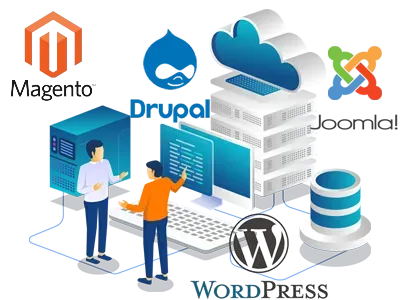
WordPress Hosting
Hosting preconfigured for WordPress: WP Toolkit, LiteSpeed Cache, AccelerateWP with its premium features, and …
Discover →Need help with a restore?
Our team supports you 24/7 by ticket, email or WhatsApp.